

Build a Modern Desktop Screenshot & Annotation Tool - Day 2: Screenshot Annotator

Projects in this week’s series:
This week, we progressively build a modern desktop screenshot and annotation tool with Python.
Day 1: Screenshot Capture Tool
Day 2: Screenshot Annotator (Today)
Day 3: Screenshot Share Tool
Today’s Project
Yesterday we built a screenshot capture tool. Today we’re adding annotation capabilities — open screenshots, draw arrows and shapes, add text labels, highlight important areas, blur sensitive information, and save annotated versions!
We’re transforming simple screenshots into professional annotated images.
Project Task
Create a screenshot annotator that:
Opens captured screenshots from your Screenshots folder
Draws arrows to point at important elements
Draws rectangles and circles for emphasis
Adds text labels and annotations
Highlights areas with semi-transparent overlays
Blurs/pixelates sensitive information (passwords, emails, etc.)
Adjusts annotation colors and thickness
Undo/redo functionality
Saves annotated versions with “_annotated” suffix
Clean drawing interface with tool palette
This project gives you hands-on practice with canvas drawing, image manipulation, layering graphics, event handling, and building interactive editing tools — essential skills for any image editing or design application!
Expected Output
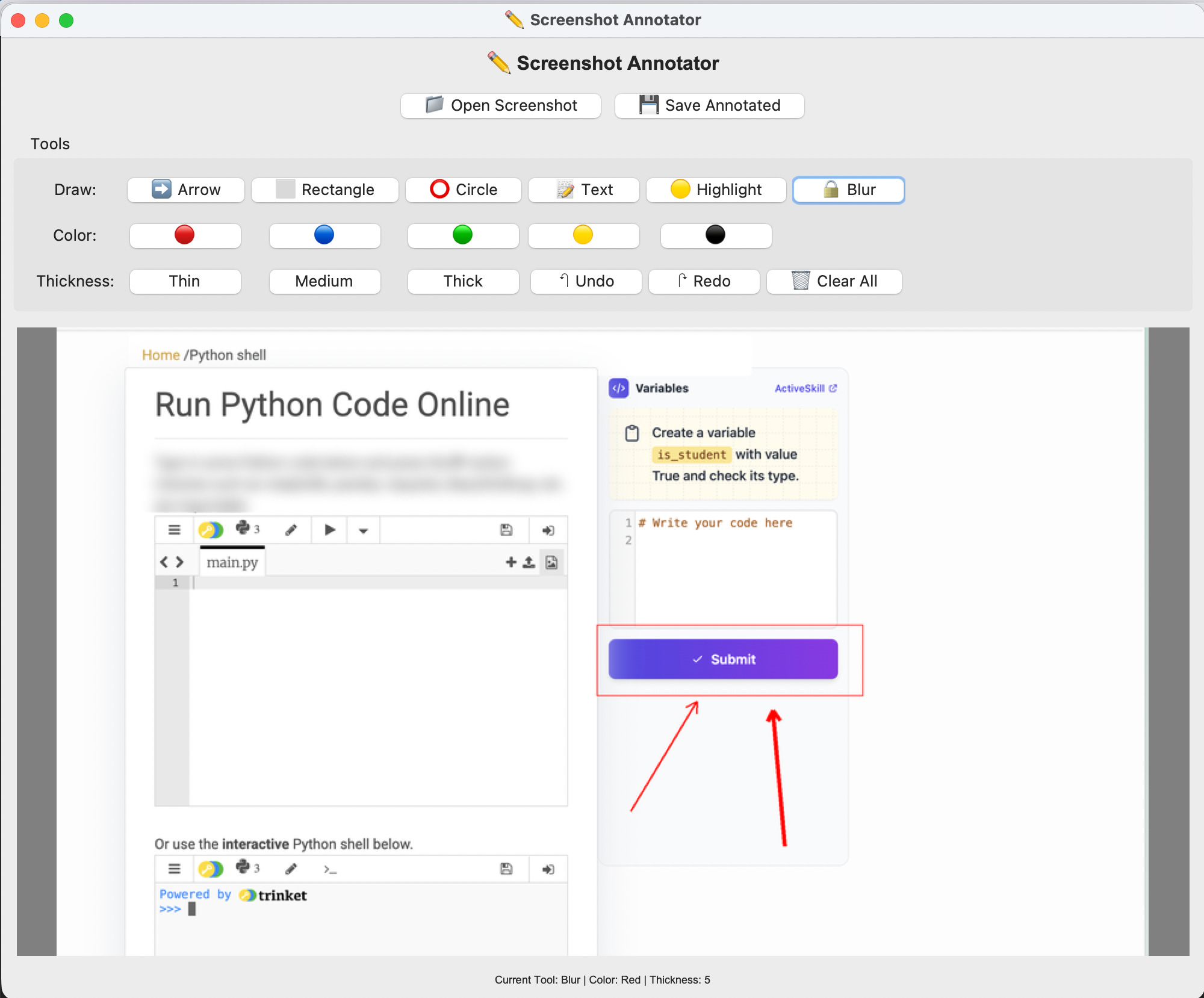
Here is how the desktop app looks like. In the example below I have uploaded a screenshot to the app. Then, I drew a rectangle there, some red arrows of different thickness and I even blurred some text on the left side of the screenshot.
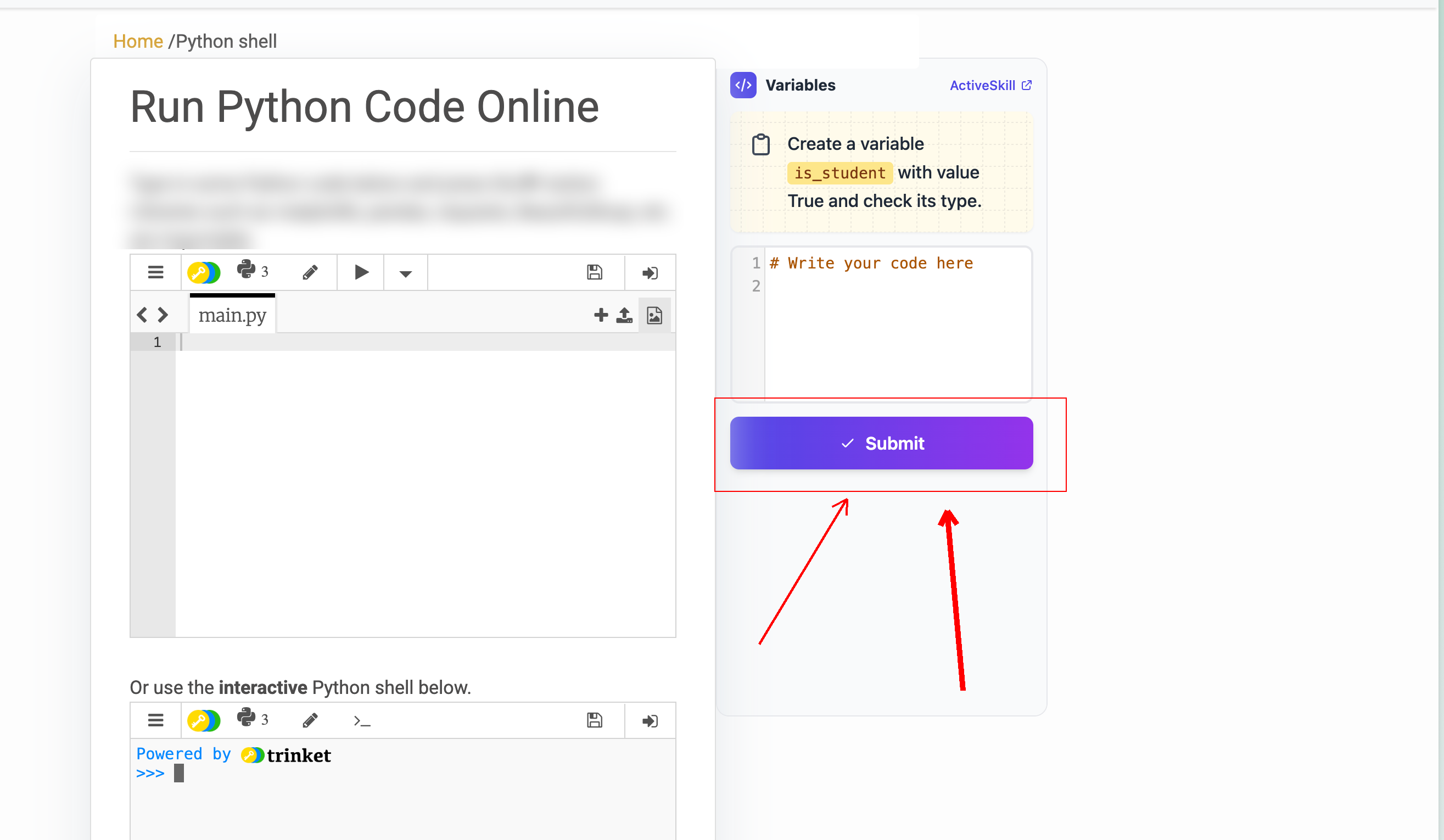
Once the user is done with annotating the screenshot, they can press the “Save Annotated“ button to save the annotated image:
That’s an app that comes handy often!
Coming Tomorrow
Tomorrow we’re building a Screenshot Sharing Tool — it shows all screenshots in your screenshot folder and lets you generate a public URL for sharing a screenshot - very handy to share something quick with others.
View Code Evolution
Reveal the working code that produces this exact project using the button below. You will also be able to compare the code with the earlier versions and see how we evolved from simple capture to full annotation capabilities.
Keep reading with a 7-day free trial
Subscribe to Daily Python Projects to keep reading this post and get 7 days of free access to the full post archives.