

Build an AI PDF Analyzer - Day 2: Multi-PDF Comparison
This program lets users ask questions related to multiple PDFs, synthesizing and comparing data between them.

Projects in this week’s series:
This week, we build a smart PDF analyzer powered by LangChain and Google’s Gemini AI that lets you upload PDFs and ask questions about them.
Day 1: PDF Question Answering
Day 2: Multi-PDF Comparison (Today)
Day 3: PDF Analyzer Web App
Today’s Project
Yesterday we built a tool to ask questions about a single PDF. Today we’re expanding to multiple PDFs — upload several documents and ask comparative questions across all of them!
Compare resumes, analyze multiple research papers, find differences in contracts, or synthesize information from multiple sources!
Project Task
Create a multi-PDF comparison tool that:
Loads multiple PDF files from a directory
Extracts text from all documents
Creates context with all PDFs combined
Answers questions across all documents
Compares and contrasts information
Identifies which document contains specific information
Maintains conversation history
Works entirely from command line
This project gives you hands-on practice with batch file processing, multi-document analysis, comparative AI reasoning, and building practical document comparison tools — essential skills for real-world AI applications!
Expected Output
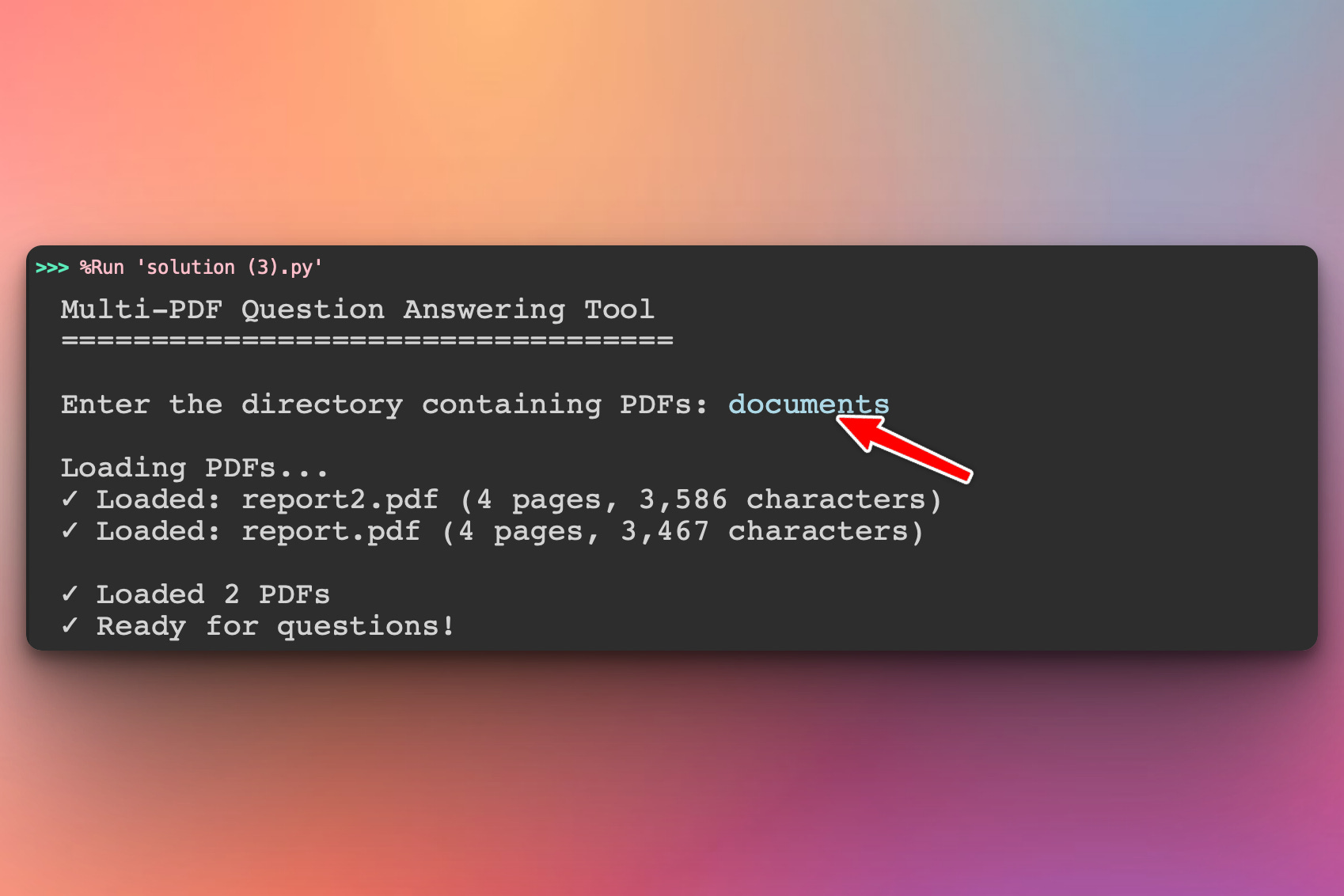
When the user runs the program, they are asked to enter the directory where the PDF files are located (e.g., documents):
In the next step, the user asks a question about the information contained in the PDF files. In our example, we have some university student data in the PDFs and some students are in both PDFs so below we ask the program to give us the student names that are in both documents:
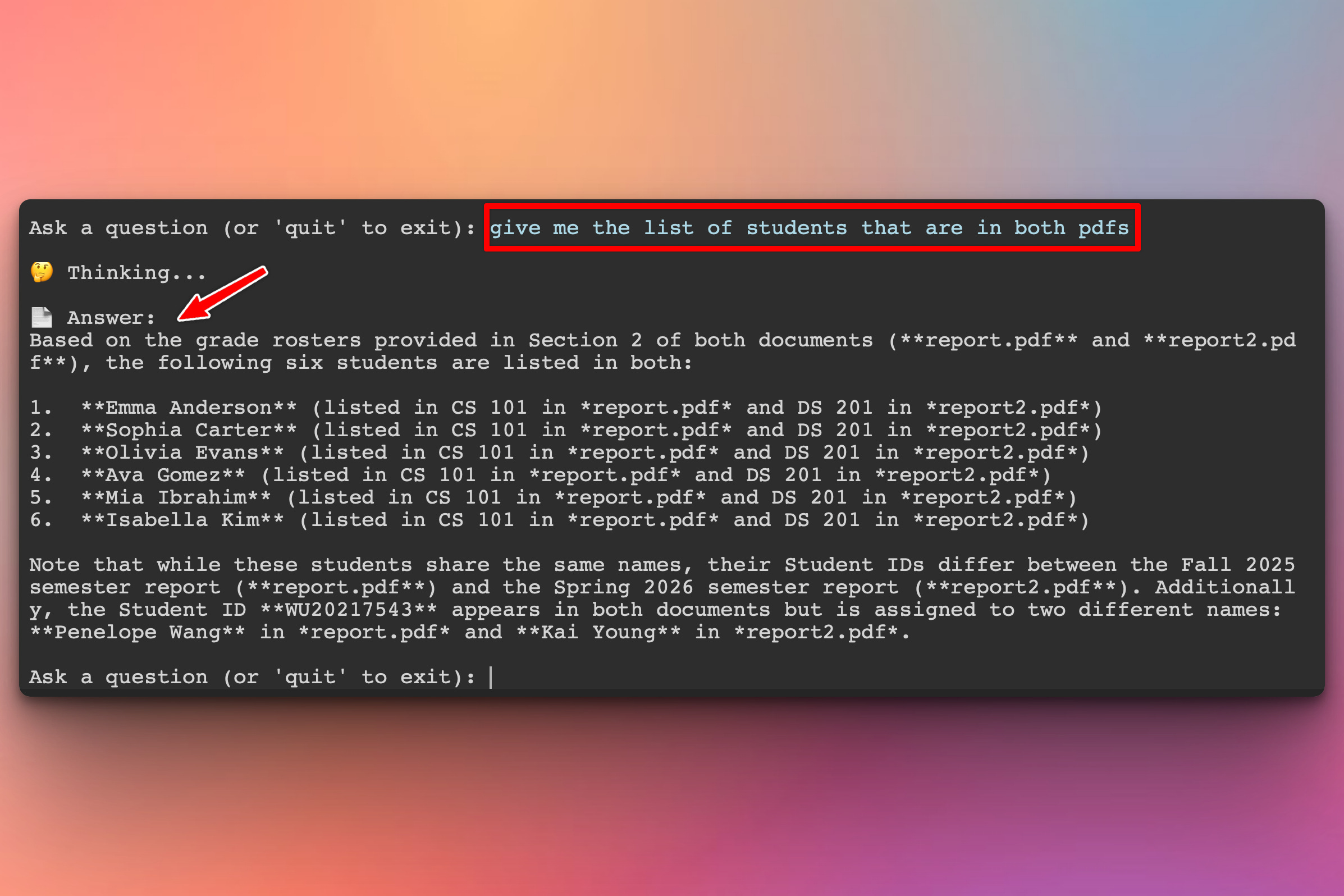
As you can see the program is aware of the PDF file names and gives us the list of shared student names in both documents, and also highlighting some potential issues with the data integrity in the documents which is great information to have.
Here is the PDF files we used for this example:

Setup Instructions
Install Required Packages:
pip install langchain-google-genai pypdfGet Your Google API Key:
Go to Google AI Studio
Click “Create API Key”
Copy your key
Paste it in the script where it says
YOUR_GOOGLE_API_KEY
Prepare Your PDFs:
Create a directory with multiple PDFs:
./documents/
├── report.pdf
├── report2.pdf
Run the tool:
python solution.pyEnter the directory path and start comparing!
Understanding Multi-Document Analysis
How it works:
Directory → Load all PDFs → Extract text from each → Combine into context
                                                              ↓
                                                    Single system prompt with all docs
                                                              ↓
Your question → "Which document mentions X?" → AI compares all documents → Answer
Key technique: Document labeling
context = ""
for pdf_file in pdf_files:
    content = extract_text(pdf_file)
    context += f"\n\n=== {pdf_file.name} ===\n{content}\n"
This labels each document so the AI knows which content comes from which file!
Multi-document capabilities:
Comparison - “Which resume is stronger?”
Contrast - “What are the differences between these papers?”
Synthesis - “What do all these contracts have in common?”
Attribution - “Which document mentions the refund policy?”
Ranking - “Order these candidates by experience level”
Use cases:
HR: Compare job applicant resumes
Research: Analyze multiple papers on the same topic
Legal: Compare contract versions or terms
Business: Analyze competitor reports
Academic: Compare different textbook chapters
Coming Tomorrow
Tomorrow we’re building a web app with Flask/Streamlit that lets anyone upload PDFs through a browser, ask questions, and get instant answers — no command line needed!
View Code Evolution
Compare today’s solution with earlier versions and see how we evolved from single-PDF analysis to multi-document comparison:
Keep reading with a 7-day free trial
Subscribe to Daily Python Projects to keep reading this post and get 7 days of free access to the full post archives.