

Build an AI PDF Analyzer - Day 3: PDF Analyzer Web App
We build a web GUI so everyone can upload PDFs and ask questions to the AI on their PDFs through the web app.

Projects in this week’s series:
This week, we build a smart PDF analyzer powered by LangChain and Google’s Gemini AI that lets you upload PDFs and ask questions about them.
Day 1: PDF Question Answering
Day 2: Multi-PDF Comparison
Day 3: PDF Analyzer Web App (Today)
Today’s Project
Welcome to the finale! We’ve built command-line tools for single and multiple PDF analysis. Today we’re creating a beautiful web app that anyone can use — no terminal, no Python knowledge required!
Upload PDFs through your browser, ask questions in a chat interface, and get instant AI-powered answers. A production-ready app you can deploy and share!
Project Task
Create a PDF analyzer web app that:
Beautiful web interface built with Streamlit
Drag-and-drop PDF upload
Upload single or multiple PDFs
Clean chat interface for asking questions
Displays conversation history
Shows which PDFs are loaded
Real-time AI responses
No command-line needed
One-click deployment ready
This project gives you hands-on practice with Streamlit, web app development, file uploads, session state management, chat interfaces, and building production-ready AI applications — essential skills for deploying AI tools!
Expected Output
Running the app:
streamlit run solution.pyBrowser opens automatically showing:
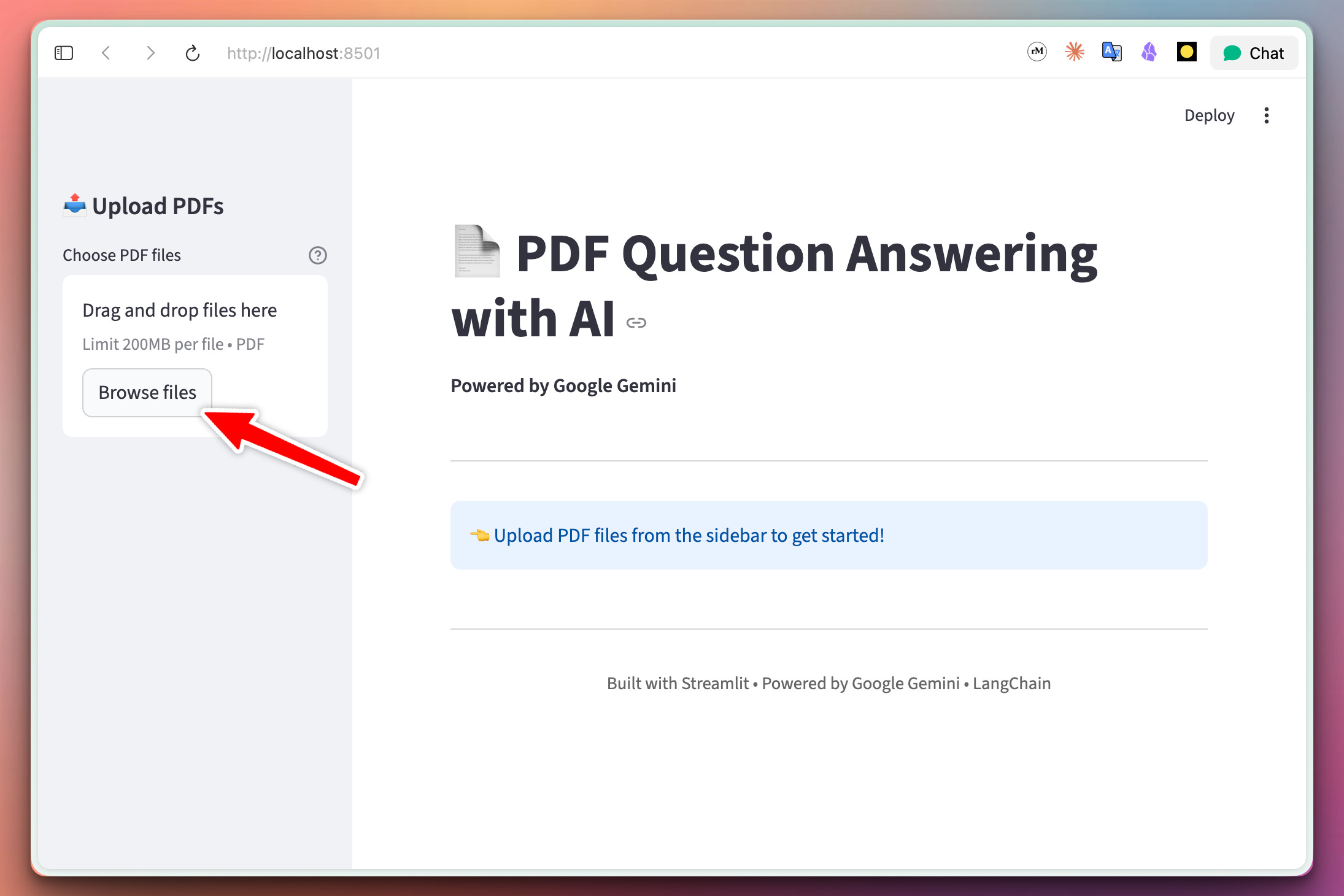
The user can click the “Browser files” button to upload PDF files. Then, they can chat with their PDFs:
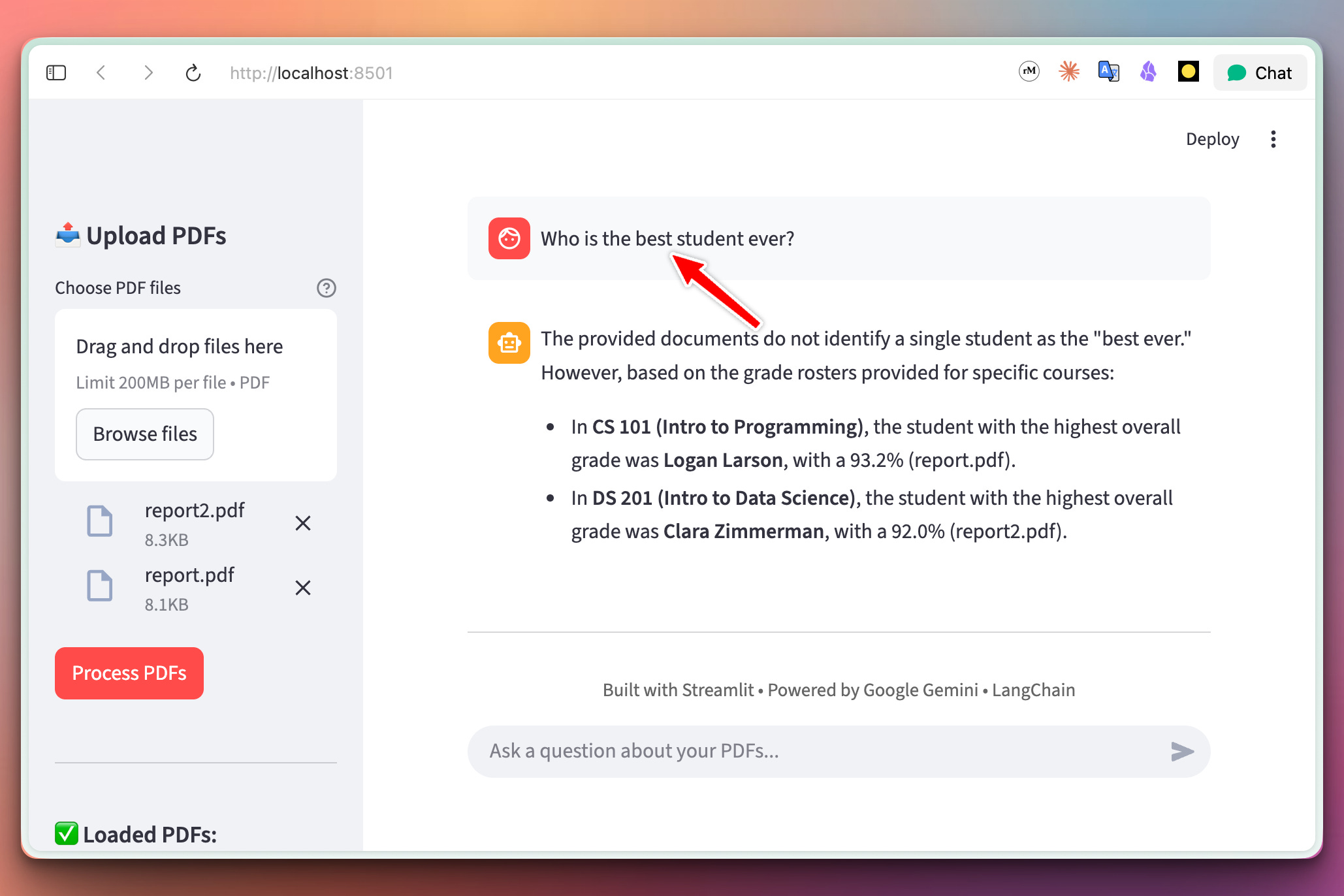
As you can see above, we ask a question that needs statistical analysis performed on the data contained inside the PDFs. And the AI gives a very good answer pointing out students with the highest grade, highlighting the document where that student data is located.
If you want to try this, you can use the same PDFs that I used:

Setup Instructions
Install Required Packages:
pip install streamlit langchain-google-genai pypdfGet Your Google API Key:
Go to Google AI Studio
Click “Create API Key”
Copy your key
Paste it in the script where it says
YOUR_GOOGLE_API_KEY
Run the web app:
streamlit run solution.pyYour browser will automatically open to
http://localhost:8501
Deploy to Streamlit Cloud (Optional):
Push your code to GitHub
Go to share.streamlit.io
Connect your repo
Add your Google API key in Secrets
Deploy! Your app is now live and shareable
Understanding Streamlit
What is Streamlit?
Streamlit is a Python framework for building web apps with zero HTML/CSS/JavaScript. Perfect for data scientists and AI developers!
Key Streamlit concepts:
import streamlit as st

# Title
st.title("My App")

# File uploader
uploaded_files = st.file_uploader("Upload PDFs", type="pdf", accept_multiple_files=True)

# Chat messages
with st.chat_message("user"):
    st.write("Question here")

with st.chat_message("assistant"):
    st.write("Answer here")

# Text input
question = st.chat_input("Ask a question")

# Session state (persists data between reruns)
if 'messages' not in st.session_state:
    st.session_state.messages = []
How our app works:
User uploads PDFs → Extract text → Store in session_state
                                            ↓
User asks question → Add to messages → Send to Gemini → Display answer
                                            ↓
                                   Add to session_state
                                            ↓
                                    Show conversation history
Session state management:
Streamlit reruns your entire script on every interaction. Session state persists data:
# Initialize
if 'pdf_content' not in st.session_state:
    st.session_state.pdf_content = ""
    st.session_state.messages = []
    st.session_state.pdf_names = []

# Store PDFs
st.session_state.pdf_content = combined_text
st.session_state.pdf_names = filenames

# Messages persist across reruns
st.session_state.messages.append({"role": "user", "content": question})
st.session_state.messages.append({"role": "assistant", "content": answer})
Why Streamlit for AI apps?
✅ Fast development - Build UIs in pure Python
✅ No frontend skills needed - No HTML/CSS/JS
✅ Perfect for AI/ML - Built-in support for chat, file uploads, charts
✅ Free deployment - Streamlit Cloud hosting
✅ Auto-reload - See changes instantly
✅ Beautiful by default - Professional-looking UIs
What You’ve Accomplished This Week
🎉 Congratulations! You’ve built a complete PDF analysis system and learned:
Day 1: Single PDF Q&A with LangChain + Gemini
Day 2: Multi-document comparison and analysis
Day 3: Production web app with Streamlit
You now have a production-ready AI application that: ✅ Analyzes single or multiple PDFs
✅ Answers questions with AI-powered accuracy
✅ Compares and contrasts multiple documents
✅ Beautiful web interface anyone can use
✅ Maintains conversation history
✅ Ready to deploy and share
This is a complete AI document assistant — from PDF upload to intelligent answers!
View Code Evolution
Compare today’s solution with earlier versions and see how we evolved from command-line tools to a full-featured web application.
Keep reading with a 7-day free trial
Subscribe to Daily Python Projects to keep reading this post and get 7 days of free access to the full post archives.