

Build Website Screenshot & Thumbnail Generator: Day 1 - Website Screenshot Tool
Level: Beginner

Projects in this week’s series:
This week, we progressively build a website screenshot and thumbnail generator with Python.
Why build this? Because capturing website screenshots manually is tedious. Whether you’re building a portfolio, documenting web projects, archiving pages, or creating thumbnails for link previews — automated screenshots save hours of work.
What you’ll learn: This series teaches you browser automation, headless browsing, image manipulation, and building tools that interact with the web programmatically. These skills apply to web scraping, testing, and automation.
Here is this week’s series:
Day 1: Website Screenshot Tool (Today)
Day 2: Batch Screenshots & Thumbnail Generator
Day 3: FastHTML Web Interface
Today’s Project
We’re starting with the foundation: we’re creating a command-line tool that captures full-page screenshots of any website. Just provide a URL, and get a perfect screenshot saved to your computer.
You’ll learn how to automate a real web browser using Playwright, capture screenshots programmatically, and build tools that interact with websites automatically!
Project Task
Create a website screenshot tool that:
Takes a URL as input from the user
Captures a full-page screenshot of the website
Saves the screenshot as a PNG file
Uses Playwright for headless browser automation
Handles different viewport sizes
Shows progress feedback
Names files with timestamps for organization
This project gives you hands-on practice with browser automation, headless browsing, screenshot capture, and building web interaction tools — essential skills for testing, scraping, and automation!
Expected Output
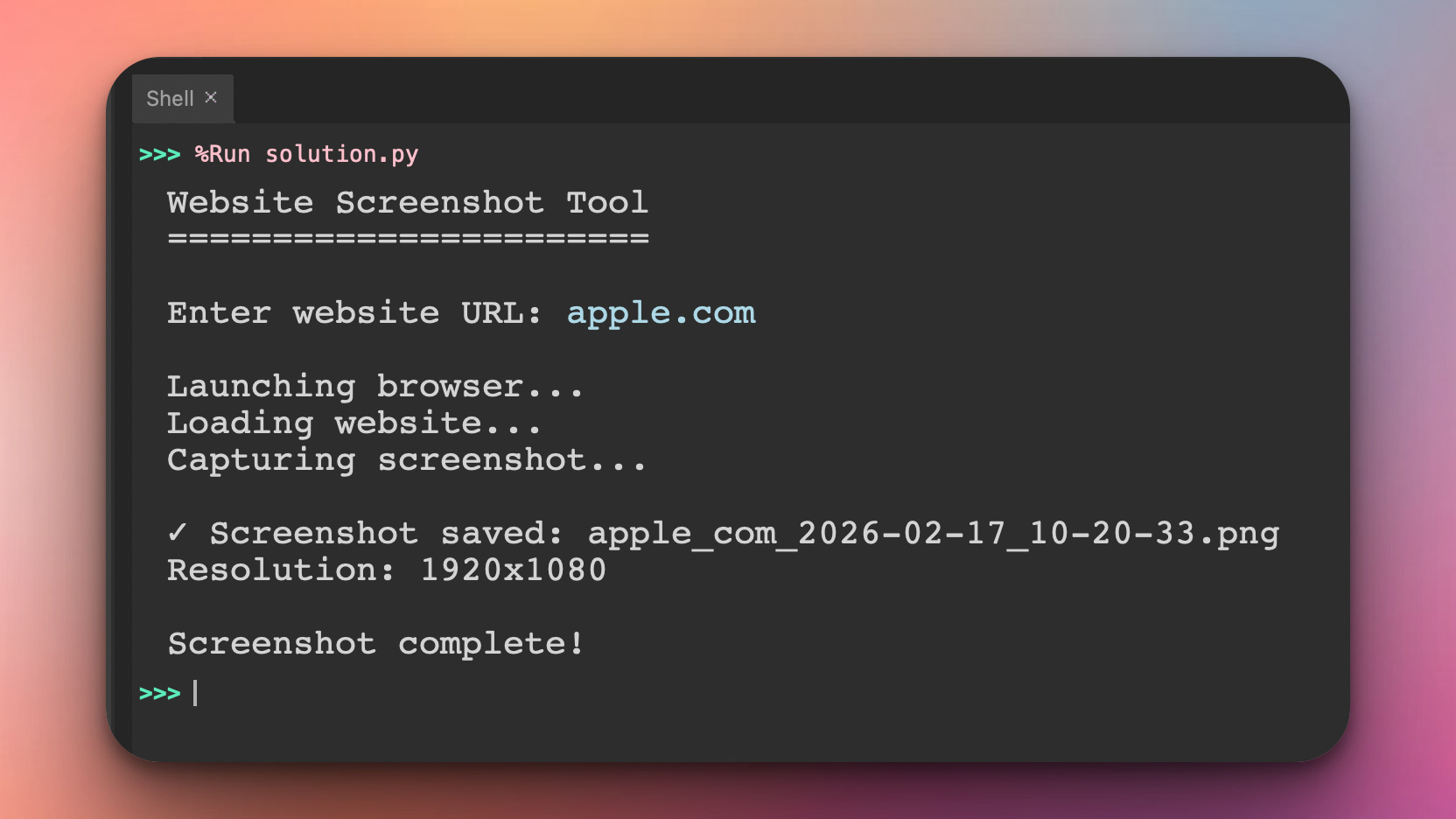
Here is the command line output when we run the program. Here the user typed in “apple.com” and the program launches a browser in the background, loads the website, and captures the screenshot:
The screenshot from the example above was saved in my working directory. Here is the exact screenshot that was generated:
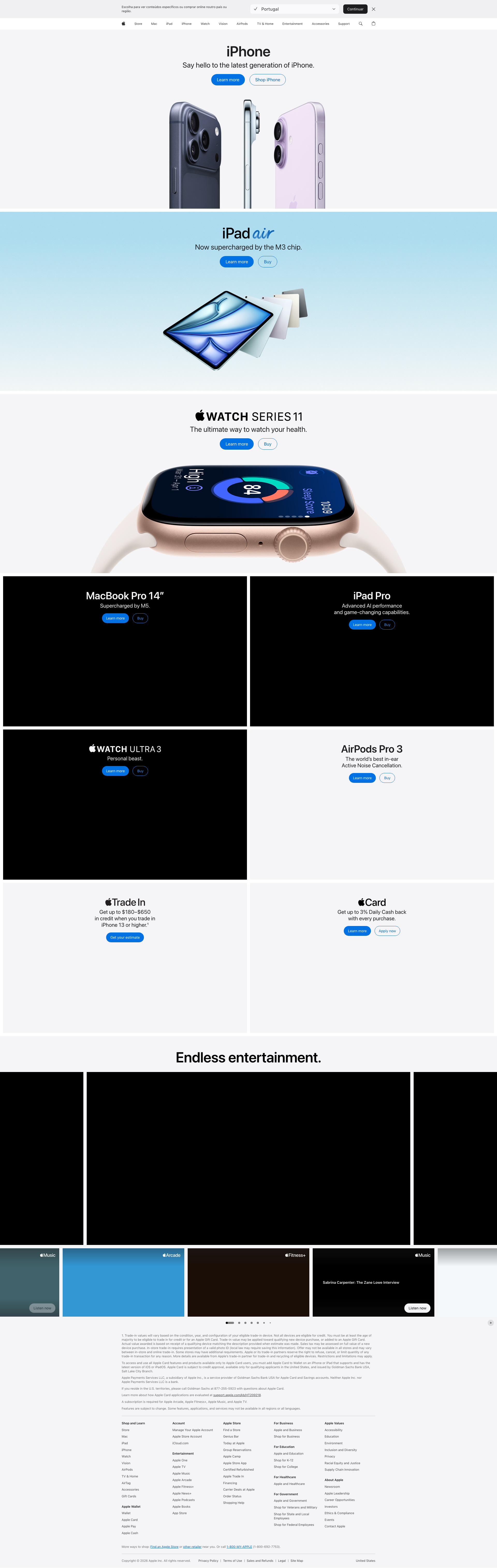
There you have a full website screenshot made entirely in Python.
Setup Instructions
Install Playwright:
pip install playwrightThen execute one of these (whichever works) in the terminal:
playwright install chromiumor/and
playwright installThe second command downloads the Chromium browser that Playwright will use for screenshots.
Coming Tomorrow
Tomorrow we’ll add batch screenshot capabilities and a thumbnail generator — process multiple URLs at once, create smaller preview images, and export screenshots in different sizes. Your single-URL tool becomes a bulk processing powerhouse!
Skeleton and Solution
Below you will find both a downloadable skeleton.py file to help you code the project with comment guides and the downloadable solution.py file containing the correct solution.
Get the code skeleton here:
Get the code solution here: