

Desktop Notification System: Day 1 - Simple Desktop Notifications
Learn how to make a Python program that triggers native notifications on your computer.

Projects in this week’s series:
This week, we build a Desktop Notification System that displays toast notifications, schedules reminders, and manages alerts — perfect for building productivity tools!
Why build this? Because notifications are everywhere — apps, websites, productivity tools. You’ll learn how to create professional desktop alerts that grab attention at the right moment!
What you’ll learn: This series teaches you desktop notifications, system tray integration, scheduling, time-based triggers, persistence, and building tools that run in the background — essential skills for automation and productivity apps!
Why users love this: Create reminders that actually work! No more forgetting tasks or missing deadlines. By Day 3, you’ll have a smart notification manager running silently in your system tray!
Day 1: Simple Desktop Notifications (Today)
Day 2: Scheduled Notifications & Timers
Day 3: Smart Notification Manager with Persistence
Today’s Project
We’re starting with the foundation: a simple notification system that displays desktop toast notifications with custom messages, titles, and durations!
You’ll learn how to trigger system notifications from Python using native OS capabilities — no complex dependencies!
Project Task
Create a desktop notification system that:
Displays toast notifications on Windows/Mac/Linux
Custom title and message
Adjustable duration (how long it shows)
Multiple notification types (info, warning, success, error)
Simple command-line interface
Cross-platform compatibility
Uses native OS notification systems
No complex dependencies
This project gives you hands-on practice with desktop notifications, system integration, cross-platform development, user alerts, and building tools that interact with the operating system — essential for automation and productivity apps!
Expected Output
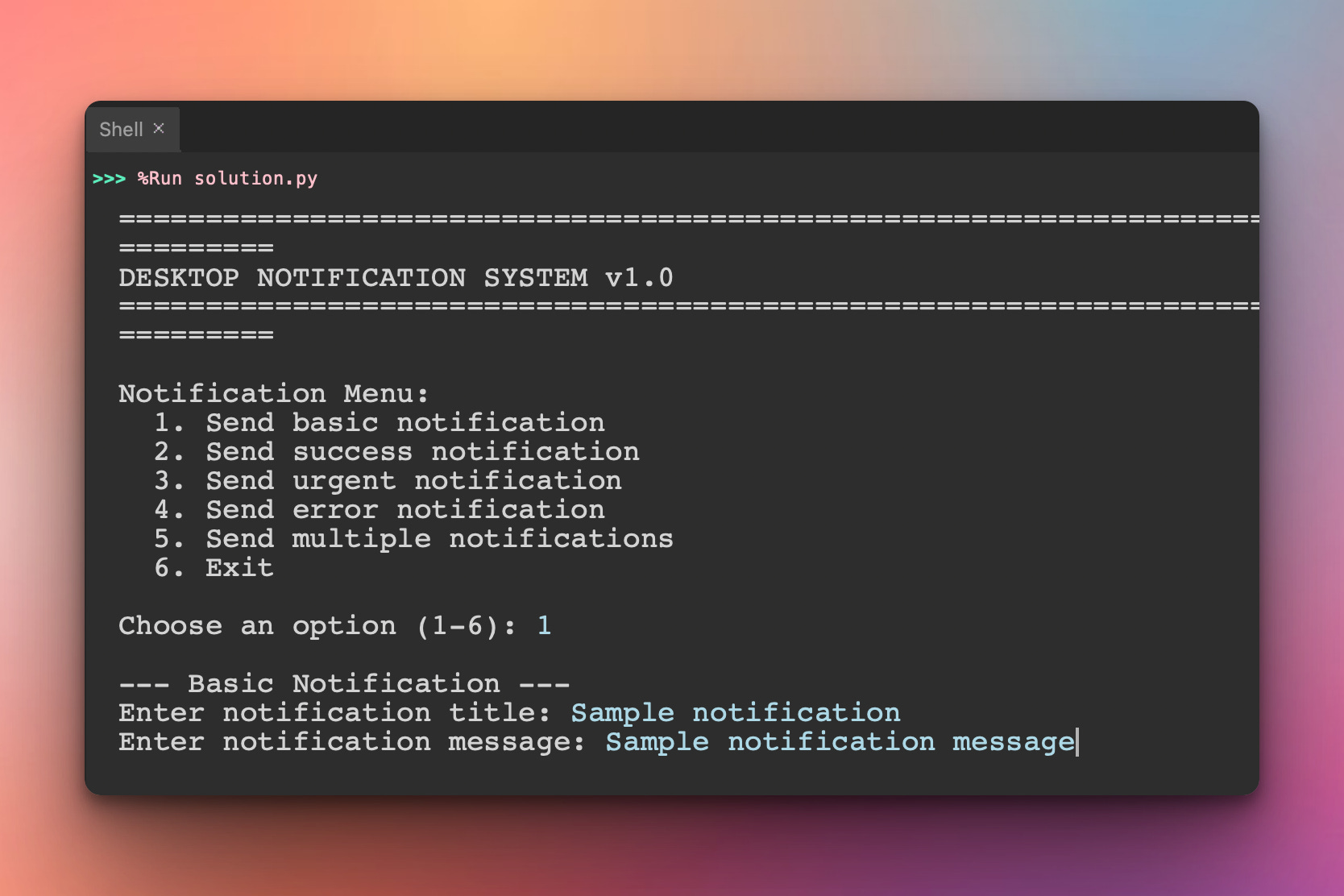
Running the notification tool:
python solution.pyConsole Output:
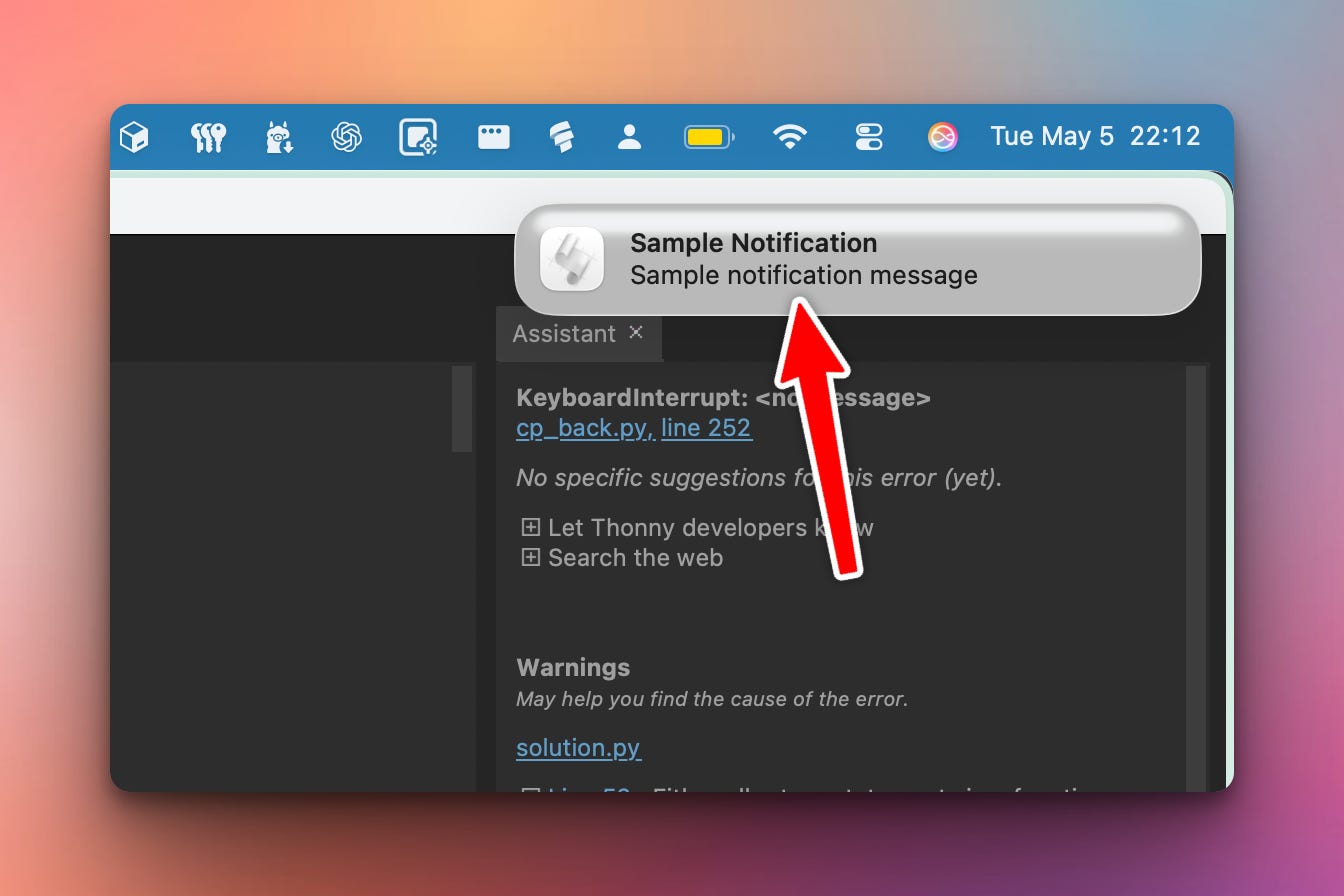
That would trigger a notification on your computer:
Setup Instructions
Install Required Packages:
macOS and Linux (no installation needed!)
Windows:
pip install win10toast
Platform support:
✅ macOS - Native notification center via
osascript✅ Windows 10/11 - Native toast notifications via
win10toast✅ Linux - Native notifications via
notify-send
Understanding Desktop Notifications
What are desktop notifications?
Desktop notifications (also called “toast notifications”) are small popup messages that appear on your screen to alert you about events, updates, or reminders.
Common uses:
Email notifications
Chat messages
Reminders and alarms
Task completions
System alerts
Download completions
How they work:
Your Python Script → Native OS API → Desktop NotificationExample flow:
# 1. Your code
notifier.send_notification("Download Complete", "file.zip is ready!")

# 2. Platform detection
# macOS: Uses osascript
# Windows: Uses win10toast
# Linux: Uses notify-send

# 3. OS displays notification
# User sees popup on screen
Understanding Cross-Platform Notifications
Why we detect the platform:
Different operating systems have different notification systems. Our code automatically detects your OS and uses the right method!
macOS approach:
# Uses AppleScript via osascript command
osascript -e 'display notification "message" with title "title"'
Windows approach:
# Uses Windows Toast Notification API
from win10toast import ToastNotifier
toaster = ToastNotifier()
toaster.show_toast("Title", "Message")
Linux approach:
# Uses notify-send (part of libnotify)
notify-send "Title" "Message" -t 5000
Our unified approach:
def send_notification(self, title, message, duration=5):
    if self.platform == "Darwin":  # macOS
        self._send_macos_notification(title, message)
    elif self.platform == "Windows":
        self._send_windows_notification(title, message, duration)
    elif self.platform == "Linux":
        self._send_linux_notification(title, message, duration)
Benefits:
✅ Same code works everywhere
✅ No complex dependencies
✅ Uses native OS features
✅ Looks native on each platform
Understanding Notification Parameters
Title:
Short, attention-grabbing text
Appears in bold at the top
Keep under 50 characters
Example: “Download Complete”, “New Message”, “Reminder”
Message:
Main notification content
Can be longer (up to 200 characters recommended)
Should be clear and actionable
Example: “Your file download.zip is ready to use”
Duration:
How long notification stays on screen (seconds)
Default: 5-10 seconds
Short messages: 5 seconds
Important messages: 10+ seconds
Note: macOS ignores duration and uses system default
App Name:
Identifies which app sent the notification
Appears at bottom of notification
Example: “Python Notifier”, “My Reminder App”
Understanding Notification Types
We implement different notification types with emoji indicators:
1. Info Notification (ℹ️):
notifier.send_info(
    title="Information",
    message="This is an informational message"
)
# Displays: ℹ️ Information
2. Success Notification (✅):
notifier.send_success(
    title="Success!",
    message="Operation completed successfully"
)
# Displays: ✅ Success!
3. Urgent Notification (⚠️):
notifier.send_urgent(
    title="Warning",
    message="Action required!"
)
# Displays: ⚠️ Warning
4. Error Notification (❌):
notifier.send_error(
    title="Error",
    message="Something went wrong"
)
# Displays: ❌ Error
Why emojis?
✅ Universal visual indicators
✅ Work on all platforms
✅ No icon files needed
✅ Instant recognition
Practical Use Cases
1. Long-running scripts:
# Scraping script
scraper.run()  # Takes 30 minutes

# Notify when done
notifier.send_success(
    "Scraping Complete",
    "Collected 1,500 quotes successfully!"
)
2. File downloads:
download_file(url)

notifier.send_notification(
    "Download Complete",
    f"{filename} is ready!"
)
3. Task reminders:
notifier.send_notification(
    "Break Time!",
    "You've been working for 1 hour. Take a 5-minute break."
)
4. System monitoring:
if disk_space < 10:
    notifier.send_urgent(
        "Low Disk Space",
        f"Only {disk_space}% remaining!"
    )
5. Build/test completions:
run_tests()

if all_passed:
    notifier.send_success("Tests Passed", "All 47 tests passed!")
else:
    notifier.send_error("Tests Failed", f"{failed_count} tests failed")
Coming Tomorrow
Tomorrow we’re adding scheduled notifications and timers — set reminders for specific times, create countdown timers, and build a Pomodoro-style work timer with automatic notifications!
Skeleton and Solution
Below you will find both a downloadable skeleton.py file to help you code the project with comment guides and the downloadable solution.py file containing the correct solution.
Get the code skeleton here:
Get the code solution here: