

Desktop Notification System: Day 2 - Scheduled Notifications & Timers
Today we’re adding time-based features — schedule notifications for specific times, create countdown timers, and build a Pomodoro work timer!

Projects in this week’s series:
This week, we build a Desktop Notification System that displays toast notifications, schedules reminders, and manages alerts — perfect for building productivity tools!
Day 1: Simple Desktop Notifications
Day 2: Scheduled Notifications & Timers (Today)
Day 3: Smart Notification Manager with Persistence
Today’s Project
Yesterday we built basic notifications. Today we’re adding time-based features — schedule notifications for specific times, create countdown timers, and build a Pomodoro work timer!
You’ll learn scheduling, time calculations, threading, and building productivity tools that notify you at the right moment!
Project Task
Enhance the notification system with time-based features:
Schedule notifications for specific times
Countdown timers with notifications
Recurring reminders (every X minutes)
Pomodoro timer (25 min work + 5 min break)
Time parsing (natural language like “5pm”, “30 minutes”)
Background task scheduling
Visual countdown display
All Day 1 features still work
This project gives you hands-on practice with scheduling, datetime parsing, threading, timers, background tasks, and building productivity tools — essential skills for automation and time-based applications!
Expected Output
Running the enhanced notification system:
python solution.pyConsole Output:
Here is what the user sees in the console when running the program:
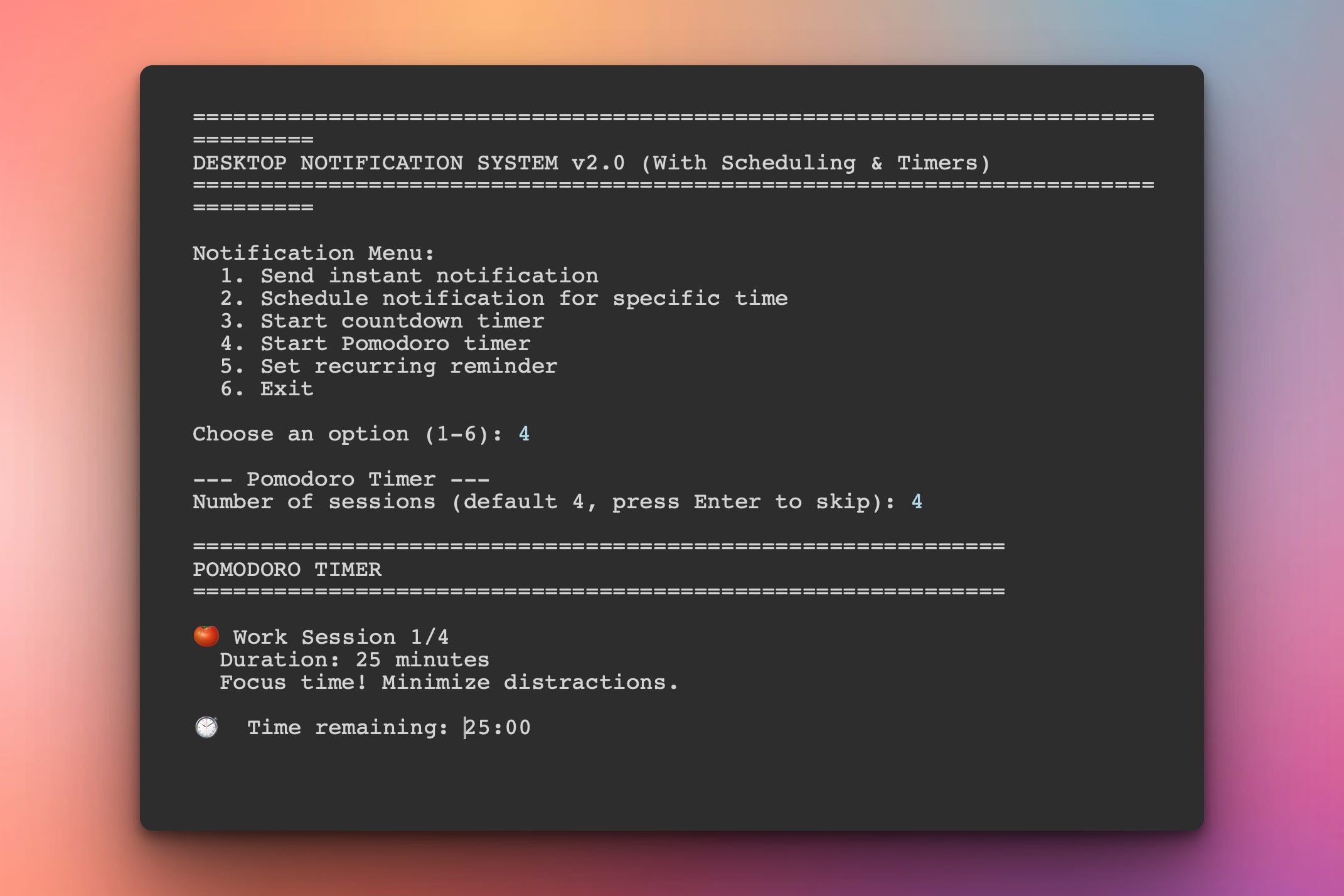
In the interaction above the user has chosen to use the Pomodoro feature. After 25 minutes have elapsed, the user will get a native desktop notification:
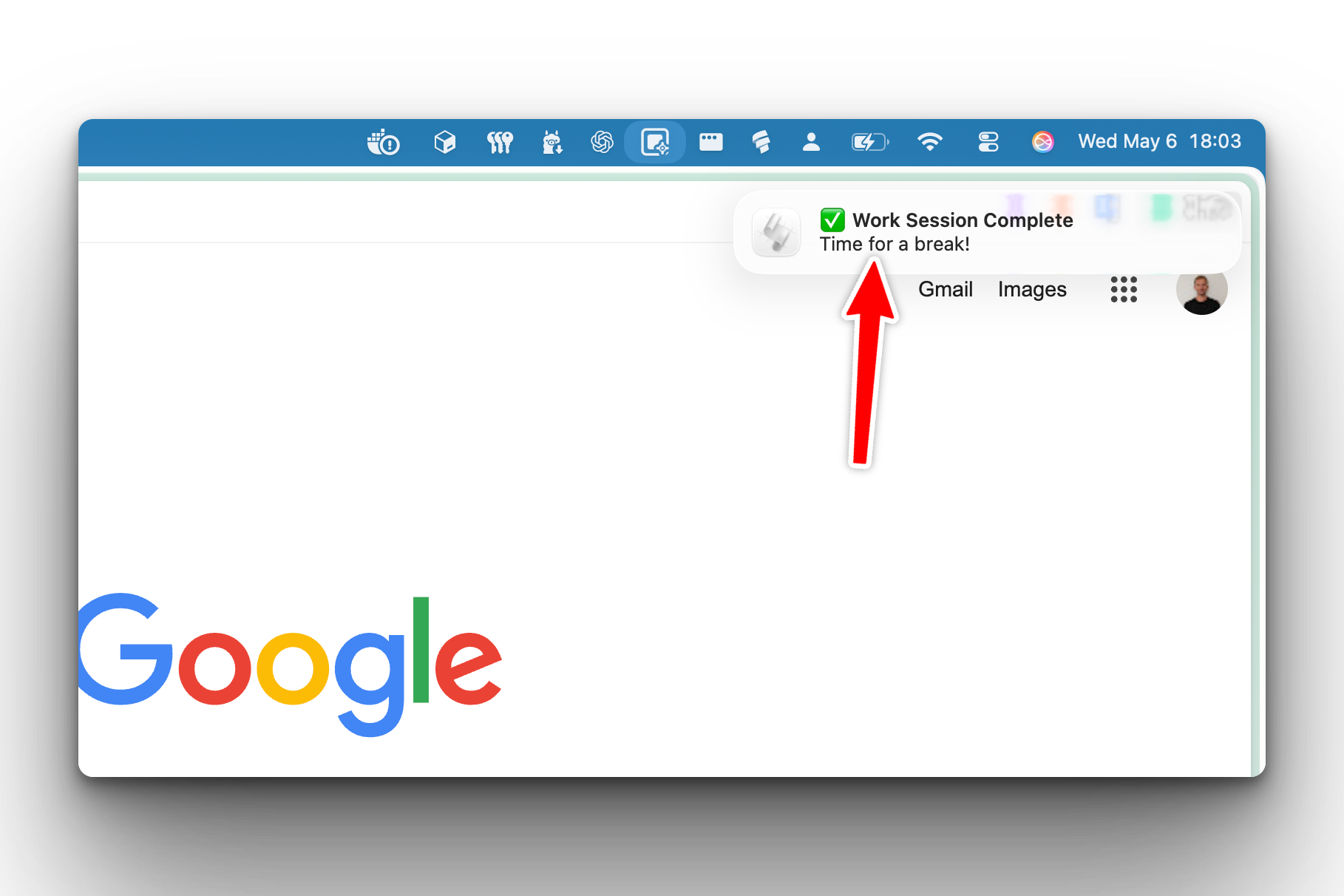
After some minutes, another focus session will start.
Setup Instructions
No new installations needed!
Same setup as Day 1:
macOS:
python solution.pyWindows:
pip install win10toast  # If not already installed
python solution.py
Linux:
python solution.pyUnderstanding Time-Based Scheduling
Three types of scheduling:
1. Absolute time (schedule_at):
# Notify at 3:00 PM today
scheduler.schedule_at("15:00", "Meeting", "Daily standup")
2. Relative time (countdown):
# Notify in 25 minutes
scheduler.countdown_timer(25, "Timer Done", "Break time!")
3. Recurring (repeating):
# Notify every 30 minutes
scheduler.recurring_reminder(30, "Reminder", "Drink water")
Understanding Datetime Parsing
Converting user input to datetime objects:
from datetime import datetime, timedelta

# Parse "15:00" to today at 3 PM
def parse_time(time_str):
    # Split "15:00" into hours and minutes
    hours, minutes = map(int, time_str.split(':'))

    # Get today's date
    now = datetime.now()

    # Combine with specified time
    scheduled_time = now.replace(hour=hours, minute=minutes, second=0)

    # If time already passed today, schedule for tomorrow
    if scheduled_time < now:
        scheduled_time += timedelta(days=1)

    return scheduled_time
Calculating time until notification:
# How long until 3 PM?
now = datetime.now()
scheduled_time = parse_time("15:00")

time_diff = scheduled_time - now

# Convert to readable format
hours = time_diff.seconds // 3600
minutes = (time_diff.seconds % 3600) // 60

print(f"Time until notification: {hours} hours {minutes} minutes")
Understanding Threading for Background Tasks
Why threading?
Without threading, your program blocks while waiting:
# BAD - Program freezes for 25 minutes!
time.sleep(25 * 60)
send_notification("Timer Done", "Break time!")
# User can't do anything else during wait
With threading, program stays responsive:
import threading

def timer_thread(minutes):
    time.sleep(minutes * 60)
    send_notification("Timer Done", "Break time!")

# Start timer in background
thread = threading.Thread(target=timer_thread, args=(25,))
thread.start()

# Program continues - user can start another timer!
Our approach:
def countdown_timer(self, minutes, title, message):
    # Create background thread
    thread = threading.Thread(
        target=self._run_countdown,
        args=(minutes, title, message)
    )
    thread.daemon = True  # Thread dies when main program exits
    thread.start()
Understanding the Pomodoro Technique
What is Pomodoro?
A productivity method that uses timed work sessions with breaks:
Work for 25 minutes (focused)
Break for 5 minutes (short)
Repeat 4 times
Long break 15-30 minutes
Our implementation:
def start_pomodoro(self, sessions=4):
    for i in range(sessions):
        # Work session
        print(f"🍅 Work Session {i+1}/{sessions}")
        self.countdown_timer(25, "Work Complete", "Time for a break!")

        # Short break (except after last session)
        if i < sessions - 1:
            print("☕ Break Time")
            self.countdown_timer(5, "Break Over", "Back to work!")
Why it works:
✅ Maintains focus with time limits
✅ Prevents burnout with regular breaks
✅ Creates rhythm and routine
✅ Notifications keep you on track
Understanding Countdown Display
Live countdown in terminal:
import time

def show_countdown(minutes):
    total_seconds = minutes * 60

    for remaining in range(total_seconds, 0, -60):
        mins = remaining // 60
        secs = remaining % 60

        # Display with carriage return (overwrites line)
        print(f"\r⏱️  Time remaining: {mins}:{secs:02d}", end='', flush=True)

        time.sleep(60)  # Wait 1 minute

    print("\n🔔 Timer complete!")
Key techniques:
\r- Carriage return (moves cursor to start of line)end=''- Don’t print newlineflush=True- Force immediate outputResult: Counter updates in place instead of printing new lines
Understanding Recurring Reminders
How recurring reminders work:
def recurring_reminder(self, interval_minutes, title, message):
    while True:
        # Wait for interval
        time.sleep(interval_minutes * 60)

        # Send reminder
        self.send_notification(title, message)

        # Calculate next reminder time
        next_time = datetime.now() + timedelta(minutes=interval_minutes)
        print(f"Next reminder: {next_time.strftime('%I:%M %p')}")
Stopping recurring reminders:
# Use Ctrl+C to stop
try:
    recurring_reminder(30, "Break", "Take a break!")
except KeyboardInterrupt:
    print("\nRecurring reminder stopped.")
Practical Use Cases
1. Meeting reminders:
# Remind 15 minutes before 2 PM meeting
scheduler.schedule_at("13:45", "Meeting Soon", "Team sync at 2 PM")
2. Pomodoro work sessions:
# Deep work with automatic breaks
scheduler.start_pomodoro(sessions=4)
3. Hydration reminders:
# Drink water every hour
scheduler.recurring_reminder(60, "Hydration", "Drink some water!")
4. Cooking timers:
# Pasta cooking timer
scheduler.countdown_timer(10, "Pasta Ready", "Time to drain the pasta!")
5. Long-running script notifications:
# Start training ML model
train_model()  # Takes 3 hours

# Schedule notification for when it should be done
scheduler.countdown_timer(180, "Training Complete", "Model training finished!")
Coming Tomorrow
Tomorrow we’re building a Smart Notification Manager with persistence — save your scheduled notifications, create notification templates, manage multiple reminders, and run everything from the system tray!
View Code Evolution
Compare today’s scheduler-enhanced system with yesterday’s basic notifications and see how we added time-based features.
Keep reading with a 7-day free trial
Subscribe to Daily Python Projects to keep reading this post and get 7 days of free access to the full post archives.