

Desktop Notification System: Day 3 - Smart Notification Manager with Persistence
Today we're creating a complete notification management system with saved reminders, templates, and a persistent scheduler that remembers everything!

Projects in this week’s series:
This week, we build a Desktop Notification System that displays toast notifications, schedules reminders, and manages alerts — perfect for building productivity tools!
Day 1: Simple Desktop Notifications
Day 2: Scheduled Notifications & Timers
Day 3: Smart Notification Manager with Persistence (Today)
Today’s Project
Welcome to the finale! We’ve built notifications and timers. Today we’re creating a complete notification management system with saved reminders, templates, and a persistent scheduler that remembers everything!
You’ll build a manager that saves your notifications, loads them on startup, and runs multiple scheduled reminders simultaneously!
Project Task
Create a complete notification management system with:
Save notifications to JSON file
Load saved notifications on startup
Manage multiple scheduled notifications
Create reusable notification templates
List all active/scheduled notifications
Cancel specific notifications
Edit and update notifications
Persistent storage between sessions
Clean command-line interface
This project gives you hands-on practice with JSON persistence, data management, state tracking, CRUD operations, and building production-ready tools — essential skills for real-world applications!
Expected Output
Running the notification manager:
python solution.pyConsole Output:
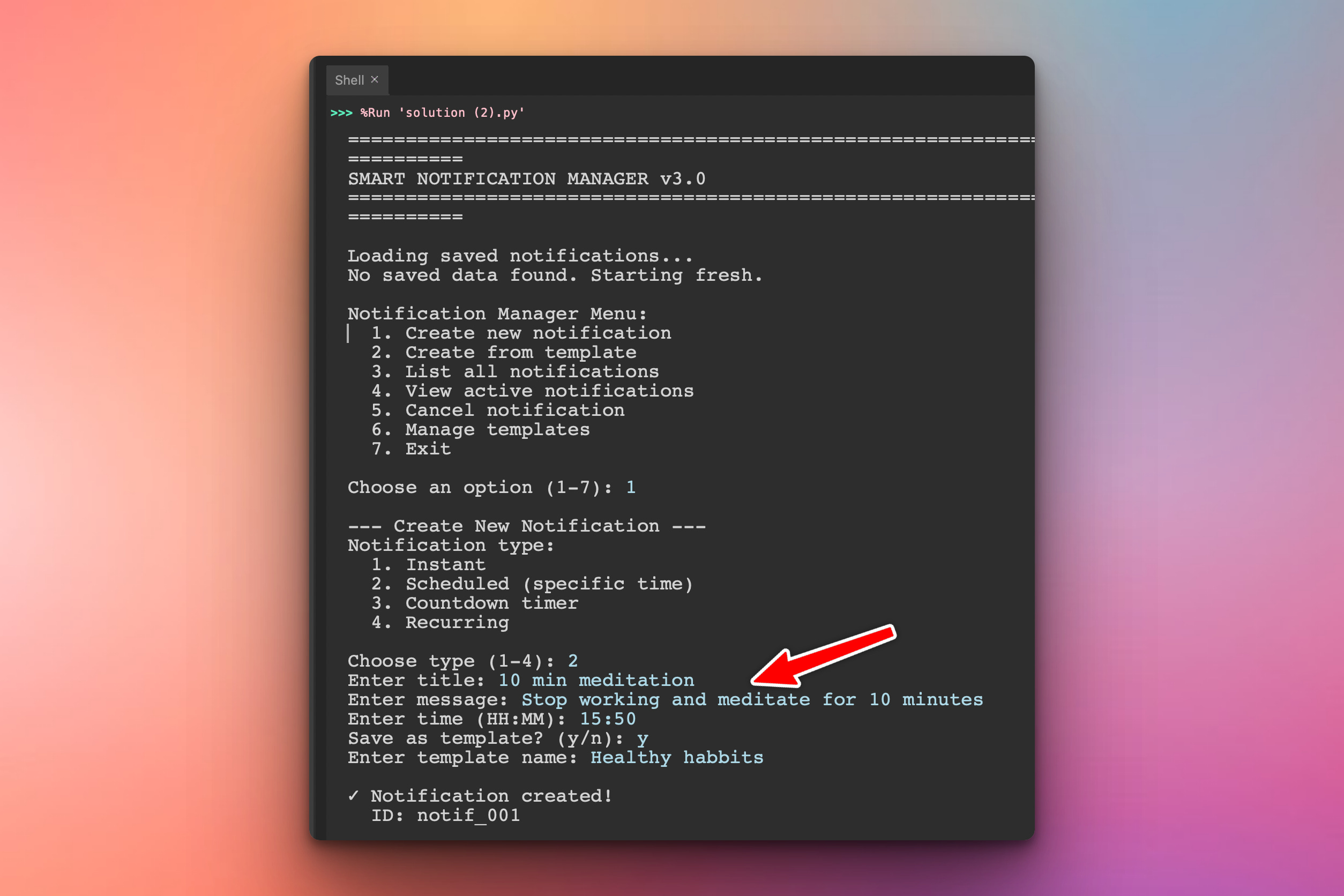
First you need to set up a scheduled notification in the terminal. Notice that we are also creating a template out of it.
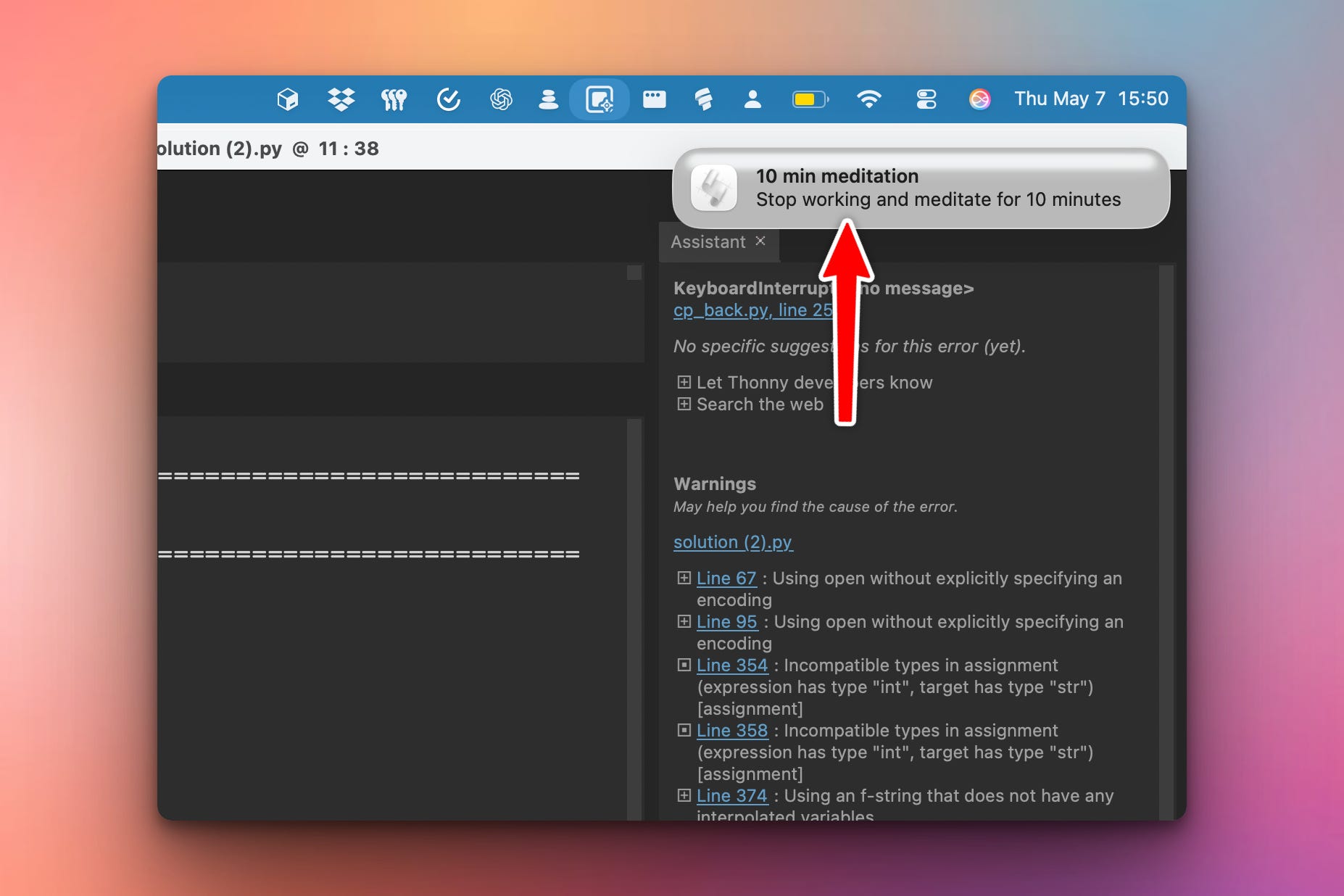
Then, the notification will trigger as a native desktop notification:
Saved JSON file: notifications_data.json
{
  "notifications": [
    {
      "id": "notif_001",
      "title": "Team Meeting",
      "message": "Weekly sync starts now",
      "type": "scheduled",
      "time": "14:00",
      "status": "active",
      "created_at": "2026-04-26T10:15:00",
      "template_name": "Weekly Team Meeting"
    },
    {
      "id": "notif_002",
      "title": "Hydration Reminder",
      "message": "Time to drink water!",
      "type": "recurring",
      "interval_minutes": 60,
      "status": "active",
      "created_at": "2026-04-26T10:20:00",
      "template_name": "Hydration Reminder"
    }
  ],
  "templates": [
    {
      "name": "Daily Standup",
      "type": "scheduled",
      "time": "09:30",
      "title": "Daily Standup",
      "message": "Morning team sync",
      "use_count": 15
    },
    {
      "name": "Hydration Reminder",
      "type": "recurring",
      "interval_minutes": 60,
      "title": "Hydration Reminder",
      "message": "Time to drink water!",
      "use_count": 5
    }
  ]
}
Setup Instructions
No new installations needed!
Same setup as Days 1 & 2:
macOS:
python solution.py
Windows:
pip install win10toast  # If not already installed
python solution.py
Linux:
python solution.py
Data file:
Creates
notifications_data.jsonautomaticallyLoads on startup
Saves on exit or after changes
Understanding Data Persistence
Why persist data?
Without persistence:
❌ All notifications lost when program closes
❌ Must recreate reminders every time
❌ Can’t track notification history
With persistence:
✅ Notifications survive program restarts
✅ Templates saved for reuse
✅ History of completed notifications
✅ Resume where you left off
Our approach:
# On startup
def load():
    with open('notifications_data.json', 'r') as f:
        data = json.load(f)
    return data

# On exit or after changes
def save():
    with open('notifications_data.json', 'w') as f:
        json.dump(data, f, indent=2)
Understanding the Data Structure
notifications_data.json structure:
{
  "notifications": [
    {
      "id": "notif_001",           // Unique identifier
      "title": "Meeting",          // Notification title
      "message": "Team sync",      // Notification message
      "type": "scheduled",         // Type: scheduled/recurring/instant
      "time": "14:00",            // For scheduled notifications
      "interval_minutes": 60,      // For recurring notifications
      "status": "active",          // Status: active/completed/cancelled
      "created_at": "2026-04-26T10:15:00",
      "template_name": "Weekly Meeting"  // Optional
    }
  ],
  "templates": [
    {
      "name": "Daily Standup",     // Template name
      "type": "scheduled",         // Template type
      "time": "09:30",            // Template time
      "title": "Daily Standup",    // Default title
      "message": "Morning sync",   // Default message
      "use_count": 15             // Usage tracking
    }
  ]
}
Key fields:
id - Unique identifier (e.g.,
notif_001)type -
scheduled,recurring,instant,countdownstatus -
active,completed,cancelledcreated_at - When notification was created
template_name - Links to template (optional)
Understanding Notification States
Notification lifecycle:
Created → Active → Completed
           ↓
       Cancelled
State definitions:
Active:
Scheduled in the future
Currently recurring
Waiting to be sent
Completed:
Already sent
Countdown finished
One-time notification done
Cancelled:
User manually cancelled
Removed before sending
State transitions:
# Create notification
notification['status'] = 'active'

# Send notification
notification['status'] = 'completed'
notification['completed_at'] = datetime.now().isoformat()

# Cancel notification
notification['status'] = 'cancelled'
notification['cancelled_at'] = datetime.now().isoformat()
Understanding Templates
What are templates?
Templates are saved notification configurations you can reuse:
# Template
{
  "name": "Daily Standup",
  "type": "scheduled",
  "time": "09:30",
  "title": "Daily Standup",
  "message": "Morning team sync"
}

# Create from template
notification = create_from_template("Daily Standup")
# Automatically fills in all fields
Template benefits:
✅ Consistency - Same notification every time
✅ Speed - One click instead of typing
✅ Tracking - See which templates are most used
✅ Reusability - Use same reminder daily/weekly
Common templates:
Daily standup (9:30 AM)
Lunch break (12:00 PM)
End of workday (5:00 PM)
Hydration reminder (every 1 hour)
Pomodoro session (25 minute timer)
Understanding Notification IDs
Why unique IDs?
Need a way to identify specific notifications:
# Without IDs - ambiguous!
cancel_notification("Team Meeting")  # Which one?

# With IDs - precise!
cancel_notification("notif_001")  # Exact notification
ID generation:
def generate_id(self):
    # Get highest existing ID number
    existing_ids = [n['id'] for n in self.notifications]

    if not existing_ids:
        return "notif_001"

    # Extract numbers and increment
    numbers = [int(id.split('_')[1]) for id in existing_ids]
    next_num = max(numbers) + 1

    return f"notif_{next_num:03d}"
Understanding Multi-Notification Management
Managing multiple scheduled notifications:
# Track all active threads
active_threads = []

# Start notification 1
thread1 = threading.Thread(target=send_later, args=("notif_001",))
thread1.start()
active_threads.append(thread1)

# Start notification 2
thread2 = threading.Thread(target=send_later, args=("notif_002",))
thread2.start()
active_threads.append(thread2)

# Both running simultaneously!
Cancelling specific notifications:
# Each thread has reference to notification ID
# Store stop flags in dictionary

stop_flags = {}

def send_later(notif_id):
    while not stop_flags.get(notif_id, False):
        # Wait and check if cancelled
        time.sleep(1)

    # Send notification
    send_notification(...)

# To cancel
stop_flags[notif_id] = True
Understanding Auto-Reload on Startup
Resume notifications on startup:
def load_and_schedule(self):
    # Load from JSON
    data = self.load_data()

    # Find active scheduled notifications
    for notif in data['notifications']:
        if notif['status'] == 'active':
            if notif['type'] == 'scheduled':
                # Reschedule if time hasn't passed
                self._reschedule_notification(notif)
            elif notif['type'] == 'recurring':
                # Restart recurring reminder
                self._restart_recurring(notif)
What gets rescheduled:
✅ Scheduled notifications - If time is in future
✅ Recurring reminders - Always restart
❌ Completed notifications - Already sent
❌ Past scheduled times - Mark as missed
What You’ve Accomplished This Week
Day 1: Desktop notifications with cross-platform support
Day 2: Scheduling, timers, and Pomodoro
Day 3: Persistence, templates, and full management
You now have:
✅ Cross-platform notifications - Works on Mac, Windows, Linux
✅ Flexible scheduling - Instant, scheduled, recurring, countdown
✅ Persistent storage - Survives program restarts
✅ Template system - Reusable notification configs
✅ Full management - Create, list, cancel, edit
✅ Production-ready - Clean code, error handling, JSON storage
View Code Evolution
Compare today’s full management system with earlier versions and see how we evolved from simple notifications → scheduling → complete persistence.
Keep reading with a 7-day free trial
Subscribe to Daily Python Projects to keep reading this post and get 7 days of free access to the full post archives.