

Email Productivity Suite: Day 3 - AI Email Assistant (Gemini)
Yesterday we sent one email. Today we send a hundred — each personalized to its recipient.

Projects in this week’s series:
This week, we build an Email Productivity Suite — a complete set of tools for one of the most universal time-sinks in modern life: writing and sending email.
Day 1: Email Sender Desktop App
Day 2: Mail Merge from CSV
Day 3: AI Email Assistant (Gemini) (Today)
Today’s Project
Welcome to the finale — and the most fun one.
You have an email to write. Maybe to your professor about a missed deadline. Maybe to a client whose invoice you need to chase. Maybe to your landlord about a leaky tap. You know what you want to say in two seconds. Writing it politely — picking the right tone, the right opening, the right level of firmness — takes ten minutes you don’t have.
Today we will have AI write our emails in the GUI. You just type a rough note in plain language:
“tell my professor i can’t make tomorrow’s office hours, doctor’s appointment, ask if we can meet thursday”
Click the tone — polite, firm, concise, apologetic — and Gemini rewrites it as a polished email. One more click and it sends through the same Gmail engine you built on Day 1.
This is the kind of AI tool you’ll actually use — not a demo, a real piece of your workflow.
Project Task
Build an AI Email Assistant with Tkinter and Gemini that:
Takes a rough draft as input — any tone, any messiness
Lets the user pick a target tone: Polite / Firm / Concise / Apologetic / Friendly
Sends the rough draft to Gemini with a tone-specific instruction
Displays the polished version in a separate editable text box
Lets the user tweak the AI output before sending
Suggests a subject line automatically based on the content
Sends the finished email through the same
send_email()function from Day 1Handles missing API keys, network errors, and Gmail errors gracefully
This project gives you hands-on practice with the langchain-google-genai library, prompt engineering for tone control, integrating LLM output into a real workflow, two-pane editing UIs, and capping off a multi-day project series cleanly.
Expected Output
Running the app:
python ai_email_assistant.pyThat will display the app. In the app, you can write the instructions to the AI about the email and pick a tone:
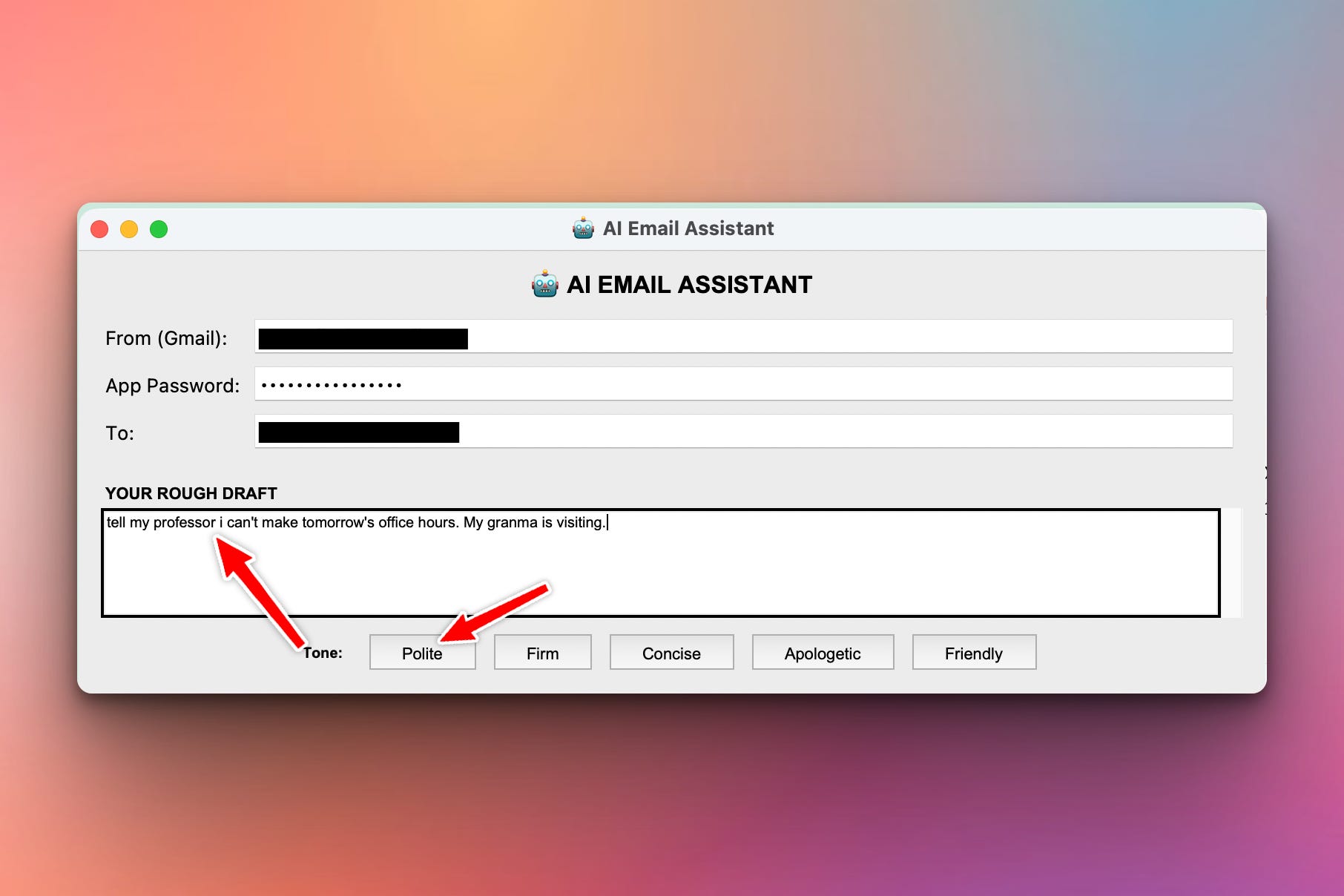
Then, further down an email with subject will be generated:
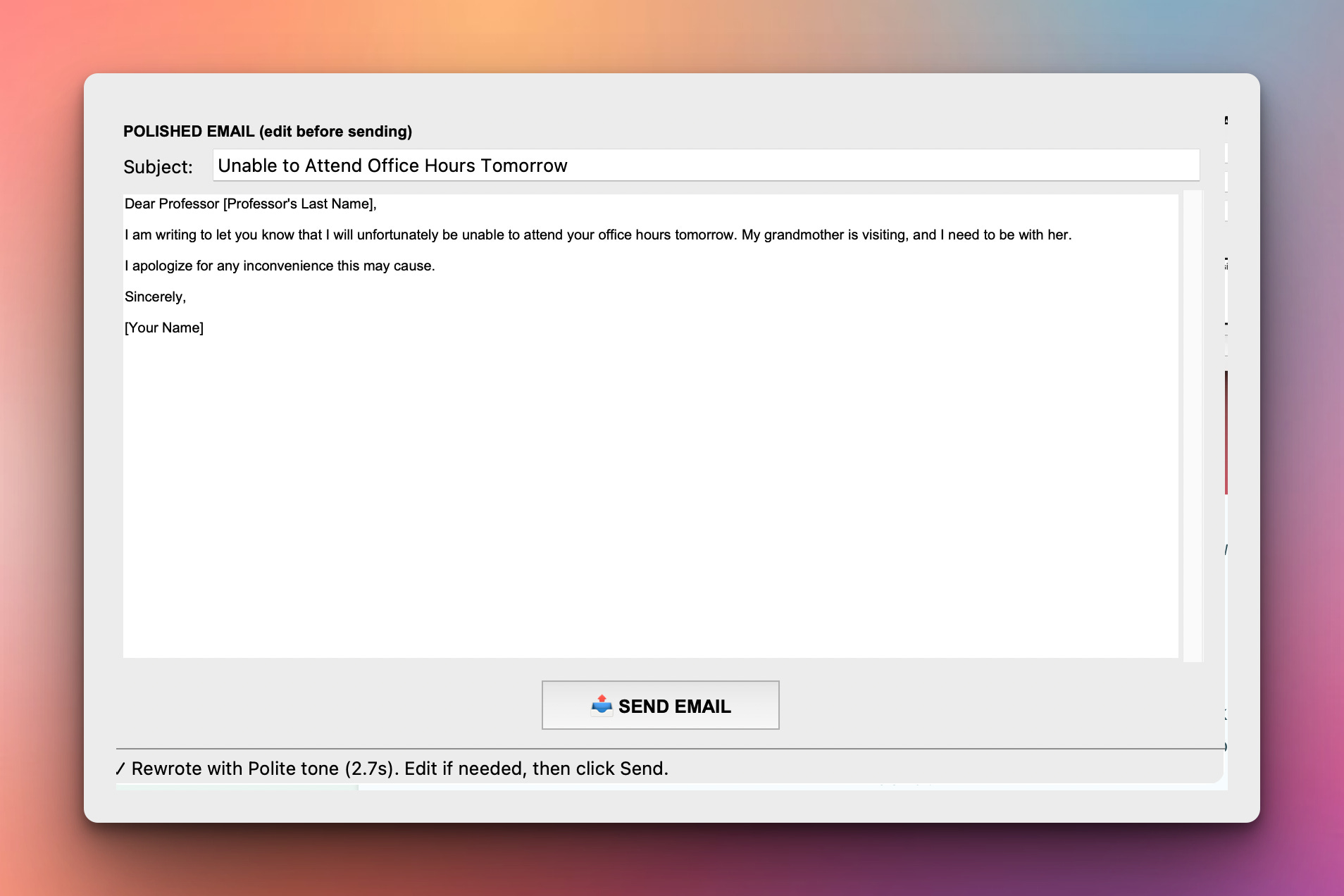
Pressing “SEND EMAIL” will send out the email to the sender’s email address. Here is what I received to my the sender’s address:
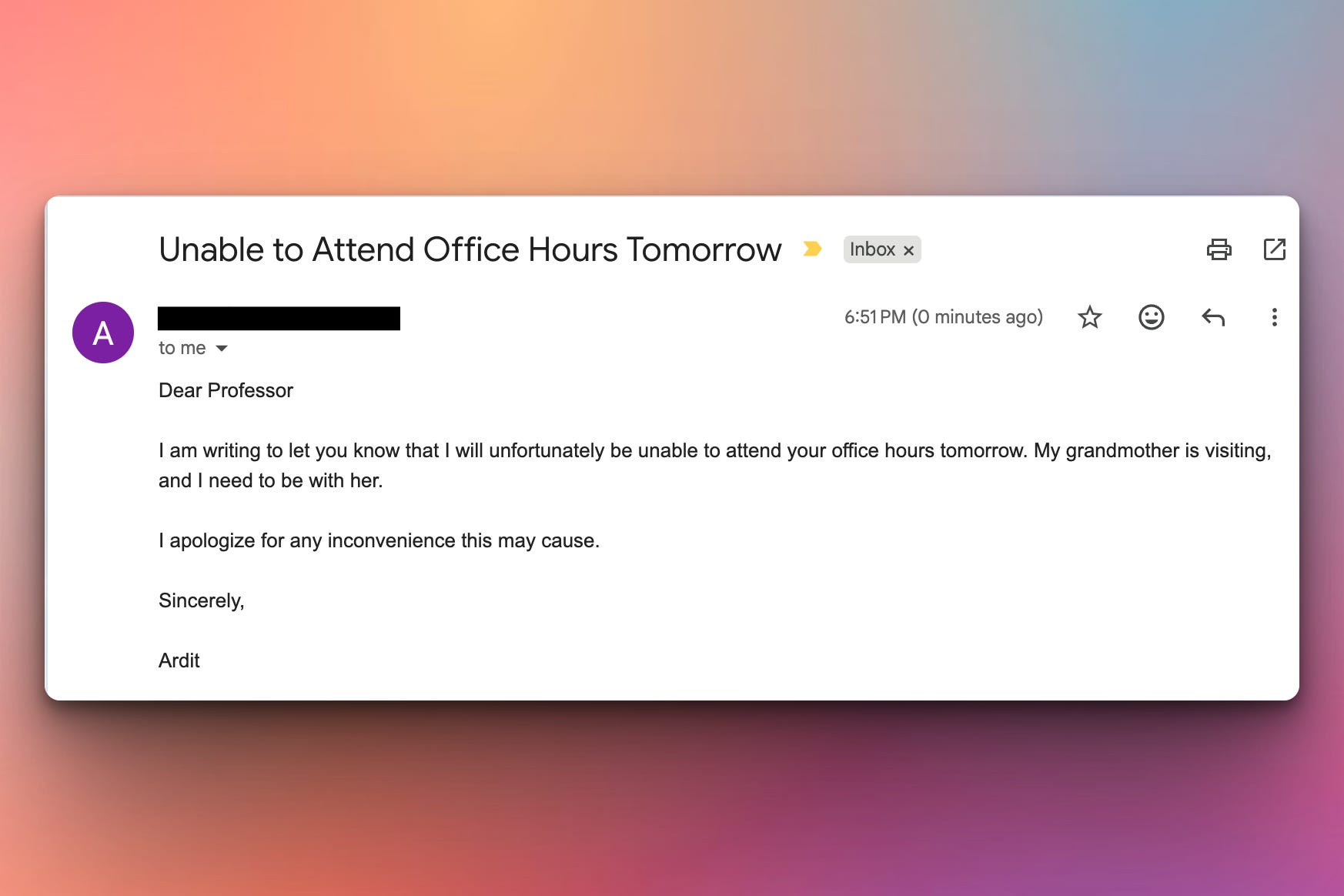
Cool, isn’t it?
Setup Instructions
Step 1 — Install the AI dependency:
pip install langchain-google-genai
That’s the only new thing this week.
Step 2 — Get a Gemini API key (free, 1 minute):
Go to aistudio.google.com/apikey.
Sign in with any Google account.
Click Create API key.
Copy the key it shows you.
The free tier gives you generous daily quota — plenty for personal email rewriting.
Step 3 — Paste your API key into the script:
Open ai_email_assistant.py and find this line near the top:
GOOGLE_API_KEY = "PASTE_YOUR_KEY_HERE"
Replace PASTE_YOUR_KEY_HERE with your actual key. Save.
Security note: keeping the key directly in the code is the simplest approach for learning. For real apps, store it in an environment variable or a
.envfile, then read it viaos.environ["GOOGLE_API_KEY"]. We use the inline approach so the project runs without extra setup.
Step 4 — Use the same Gmail App Password from Day 1.
If you already set up your App Password earlier this week, you’re done. Otherwise see Day 1 — 5-minute setup.
Run it:
python ai_email_assistant.py
Understanding LangChain + Gemini
langchain-google-genai is the glue between Python and Google’s Gemini models. The basic shape is three steps:
from langchain_google_genai import ChatGoogleGenerativeAI

llm = ChatGoogleGenerativeAI(
    model="gemini-2.5-flash",
    google_api_key=GOOGLE_API_KEY,
    temperature=0.4,        # how creative; lower = more focused
)

response = llm.invoke("Rewrite this email politely: tell my prof I'll be late")
print(response.content)
Three things to know:
gemini-2.5-flash— Google’s fast, cheap model. Perfect for short text rewriting. The smartergemini-3.5-flashexists too; you can swap it in any time, you just pay a small latency cost.temperature=0.4— moderate creativity. 0 is fully deterministic (same input → same output every time); 1 is wildly creative. For tone rewriting, 0.3–0.5 hits the right spot: consistent voice with a bit of natural variation.response.content— the actual text. The full object has tokens, metadata, etc.; for our use we just want the string.
Understanding Prompt Engineering for Tone
The whole AI part of the app boils down to one well-crafted prompt template. We need Gemini to:
Read the user’s rough note.
Rewrite it as a professional email.
Apply the chosen tone.
Return only the email — no preamble, no explanation.
Here’s a template that does exactly that:
PROMPT_TEMPLATE = """You are an expert email writer. The user has a rough \
draft of an email they want to send. Rewrite it as a polished, well-structured \
email in a {tone} tone.

Rules:
- Output ONLY the email body. No preamble, no commentary, no markdown.
- Do not include a subject line - the user handles that separately.
- Keep it appropriately brief; do not pad with filler.
- Preserve every concrete detail from the rough draft.
- Sign off appropriately for the tone.

Tone: {tone}

Rough draft:
{rough_draft}

Polished email:"""
Three prompt-writing habits in this one example:
Set the role — “You are an expert email writer” primes the model for the task.
List explicit rules — bullet rules are dramatically more effective than vague prose at controlling output. “Output ONLY the email body” prevents the model’s tendency to add “Sure! Here’s your email:” preambles.
Show the structure — ending with “Polished email:” tells the model what comes next is the answer. Sounds silly, works brilliantly.
The {tone} and {rough_draft} are placeholders we’ll fill at runtime — same str.format() trick from Day 2:
prompt = PROMPT_TEMPLATE.format(tone="polite", rough_draft=user_text)
Understanding Tone-Specific Variations
“Polite” and “Firm” and “Concise” each have different sweet spots. We can make the rewrite much better by giving each tone a bit of guidance:
TONES = {
    "Polite": "warm, respectful, hedged where appropriate",
    "Firm": "direct and assertive, but not aggressive; clear next steps",
    "Concise": "as short as possible while staying complete; no filler words",
    "Apologetic": "genuinely apologetic, takes ownership, offers to make it right",
    "Friendly": "warm and conversational; appropriate for someone you know well",
}
In the prompt:
prompt = PROMPT_TEMPLATE.format(
    tone=f"{tone_name} ({TONES[tone_name]})",
    rough_draft=user_text,
)
So the model sees Tone: Polite (warm, respectful, hedged where appropriate). The parenthesized hint is the real instruction — the label is just for the user. This is prompt scaffolding: giving the model enough context to do the job well, without making the user write a paragraph every time.
Understanding Subject Line Suggestions
Most rough drafts don’t include a subject — but the user needs one. We can have Gemini suggest one in the same call by asking it for a tiny JSON-shaped response:
SUBJECT_PROMPT = """Suggest a concise email subject line for this email body. \
Reply with ONLY the subject line - no quotes, no preamble.

Email body:
{body}

Subject line:"""

def suggest_subject(llm, body):
    response = llm.invoke(SUBJECT_PROMPT.format(body=body))
    return response.content.strip()
A separate small call keeps things simple — one call per output. Both are short (a few hundred tokens) so latency adds up to maybe two seconds total. Much cleaner than trying to coerce structured output from the model.
Aside: for production, you’d probably want
with_structured_output(like we did in Week 19’s travel planner) and get both subject and body in one structured call. For a personal-use tool, two simpleinvokecalls are easier to reason about.
Understanding the Two-Pane Layout
The whole app is a top-down flow: rough on top, polished on bottom. Tkinter’s vertical stacking is perfect:
# Top pane: rough draft
tk.Label(root, text="YOUR ROUGH DRAFT").pack(anchor="w")
self.rough_text = tk.Text(root, height=6, wrap="word")
self.rough_text.pack(fill="x", padx=10)

# Tone buttons
tone_bar = tk.Frame(root)
tone_bar.pack(pady=8)
for tone in TONES:
    tk.Button(tone_bar, text=tone,
              command=lambda t=tone: self.rewrite(t)).pack(side="left", padx=4)

# Big "Rewrite" button
tk.Button(root, text="✨ REWRITE WITH AI", ...).pack(pady=4)

# Bottom pane: polished output
tk.Label(root, text="POLISHED EMAIL (edit before sending)").pack(anchor="w")
self.subject_entry = tk.Entry(root, textvariable=self.subject_var)
self.subject_entry.pack(fill="x", padx=10)
self.polished_text = tk.Text(root, height=10, wrap="word")
self.polished_text.pack(fill="both", expand=True, padx=10)
The polished pane is a regular Text widget — the user can edit it. That’s the key UX choice: AI suggests, human approves. The output isn’t locked; you’re free to fix any phrase before sending.
Understanding the Threading Question
LLM calls take 1–3 seconds. If we call llm.invoke() directly from the button handler, Tkinter freezes for that whole time — the window won’t repaint, won’t respond to clicks, looks crashed.
For a personal-use tool with quick calls, the simplest fix is root.update_idletasks() after a “Thinking...” status update, then let the call complete. The window freezes briefly but the user knows why:
self.set_status("✨ Thinking...")
self.root.update_idletasks()
result = llm.invoke(prompt)
For longer calls or a heavier app, you’d use threading.Thread and root.after() to keep the GUI responsive. For our case — a few seconds, a clear status message — the simple approach is the right tradeoff. Less code to teach, less code to break.
Understanding Reusing send_email Again
The whole point of the architecture lesson this week:
# Top of ai_email_assistant.py
from email_sender import send_email
Day 1’s send_email() ships emails from Day 1’s app, from Day 2’s mail-merge loop, and from Day 3’s AI assistant. Three completely different products, one engine. That’s what separating pure functions from UI gets you.
When the user clicks Send, we feed Gemini’s polished output into the same function:
def on_send(self):
    sender = self.from_var.get().strip()
    password = self.password_var.get()
    recipient = self.to_var.get().strip()
    subject = self.subject_var.get().strip()
    body = self.polished_text.get("1.0", "end-1c").strip()

    try:
        send_email(sender, password, recipient, subject, body)
        self.set_status(f"✓ Email sent to {recipient}")
    except smtplib.SMTPAuthenticationError:
        self.set_status("✗ Gmail authentication failed. Check your App Password.")
    except Exception as e:
        self.set_status(f"✗ Send failed: {e}")
Same shape as Day 1. Same SMTP errors. Same status updates.
Understanding the Bigger Picture
Three days of email tools. One pure send function. One templating helper. One AI rewriter.
Day 1 built the engine.
Day 2 wrapped it in a loop.
Day 3 put intelligence in front of it.
Each layer adds value; none of them rewrite the layer below. That’s not a Python pattern — that’s the discipline behind every well-built software product. Today you wrote one piece of an “email-productivity-AI-assistant”; the same shape works for any AI-powered desktop app you’ll build from here.
What You’ve Accomplished This Week
🎉 Congratulations! You’ve built a complete Email Productivity Suite:
Day 1: Send a single email through Gmail SMTP via a desktop app
Day 2: Send personalized emails to a CSV of recipients
Day 3: AI-rewrite rough drafts in any tone before sending
You now have:
✅ Python email skills — smtplib, EmailMessage, Gmail SMTP, App Passwords ✅ CSV-driven personalization — DictReader, str.format(), batch processing ✅ LangChain + Gemini integration — building a real LLM-powered tool ✅ Prompt engineering — tone control, output constraints, structured prompts ✅ A reusable architecture — pure functions composed across three tools
Real-world applications:
📨 Personal email speed — quick drafts become professional emails in seconds
🎓 Student communications — emailing professors, advisors, departments
💼 Freelancer workflows — invoicing, follow-ups, client check-ins
🛠️ Automation triggers — long script finishes → script emails you the result
🤖 Custom AI tools — you now know how to wrap any LLM into a desktop app
Next steps:
Add an inbox reader (IMAP) — let Gemini summarize and respond to incoming emails
Save templates — keep your favorite rewritten emails for one-click reuse
Multi-recipient AI batch — combine Day 2 mail merge with Day 3 AI rewriting
Voice input — speak your rough draft, transcribe with Whisper, rewrite with Gemini
Use
keyringorpython-dotenvto manage your API key and Gmail credentials safely
You’ve built a real, daily-use AI tool in three days. 🚀
View Code Evolution
Compare today’s AI assistant with Day 1’s single sender and Day 2’s mail merge — and see how the same pure send_email() function composes with templating and an LLM to produce three very different end-user tools.
Keep reading with a 7-day free trial
Subscribe to Daily Python Projects to keep reading this post and get 7 days of free access to the full post archives.